
Published: |Last updated:
Listen to this article
Show Quick ReadConcise summary from this article
Modern computers, laptops, and tablets come with multiple features, but one common limitation is the number of available ports. Many devices have only a few USB connections, making it difficult to connect a keyboard, mouse, external storage drive, printer, webcam, and other peripherals simultaneously. This is where a USB hub becomes useful. A USB hub expands the connectivity of a single USB port, allowing you to connect multiple compatible devices.…
Ask AI About This Article
Answers are limited to information in this article.
Modern computers, laptops, and tablets come with multiple features, but one common limitation is the number of available ports. Many devices have only a few USB connections, making it difficult to connect a keyboard, mouse, external storage drive, printer, webcam, and other peripherals simultaneously. This is where a USB hub becomes useful.
A USB hub expands the connectivity of a single USB port, allowing you to connect multiple compatible devices. Depending on its design, it may also provide HDMI output, Ethernet connectivity, memory card readers, and USB-C Power Delivery support.
In this guide, you will learn what a USB hub is, how it works, its different types, its benefits, and how to choose the right one for your laptop, desktop, MacBook, or workstation.
What Is a USB Hubs?
A USB Hubs is a device that expands one USB port into multiple ports, allowing you to connect several compatible peripherals to a computer or another supported host device.
For example, if your laptop has only two USB ports, a hub can help you connect a mouse, keyboard, pen drive, and other supported accessories through a single connection. The number and types of devices you can use simultaneously depend on the hub’s specifications, available power, and the connected computer.
USB hubs are useful for students, office employees, remote workers, content creators, gamers, and anyone who regularly connects multiple accessories to a computer.
Some hubs provide only additional USB-A ports, while advanced models include USB-C, HDMI, Ethernet, SD card readers, and charging capabilities.
How Does a USB Hub Work?
A USB hub connects to a compatible USB port on a computer and provides additional ports for peripherals. When you connect accessories to the hub, it manages communication between the connected devices and the host computer.
For example, you can connect a keyboard and mouse to a hub while using another port for a USB flash drive. Your computer communicates with these devices through the hub’s upstream connection.
USB hubs generally come in two main power configurations:
Bus-powered hubs: These draw power from the connected computer. They are suitable for many low-power peripherals, such as keyboards, mice, and basic USB accessories.
Externally powered hubs: These use a separate power adapter to supply additional power to connected devices. They can be more suitable for multiple peripherals or devices with higher power requirements.
Remember that connecting more devices does not automatically increase data transfer speed. The available bandwidth may be shared among devices, depending on the hub’s design and the USB standard.
Different Types of USB Hubs
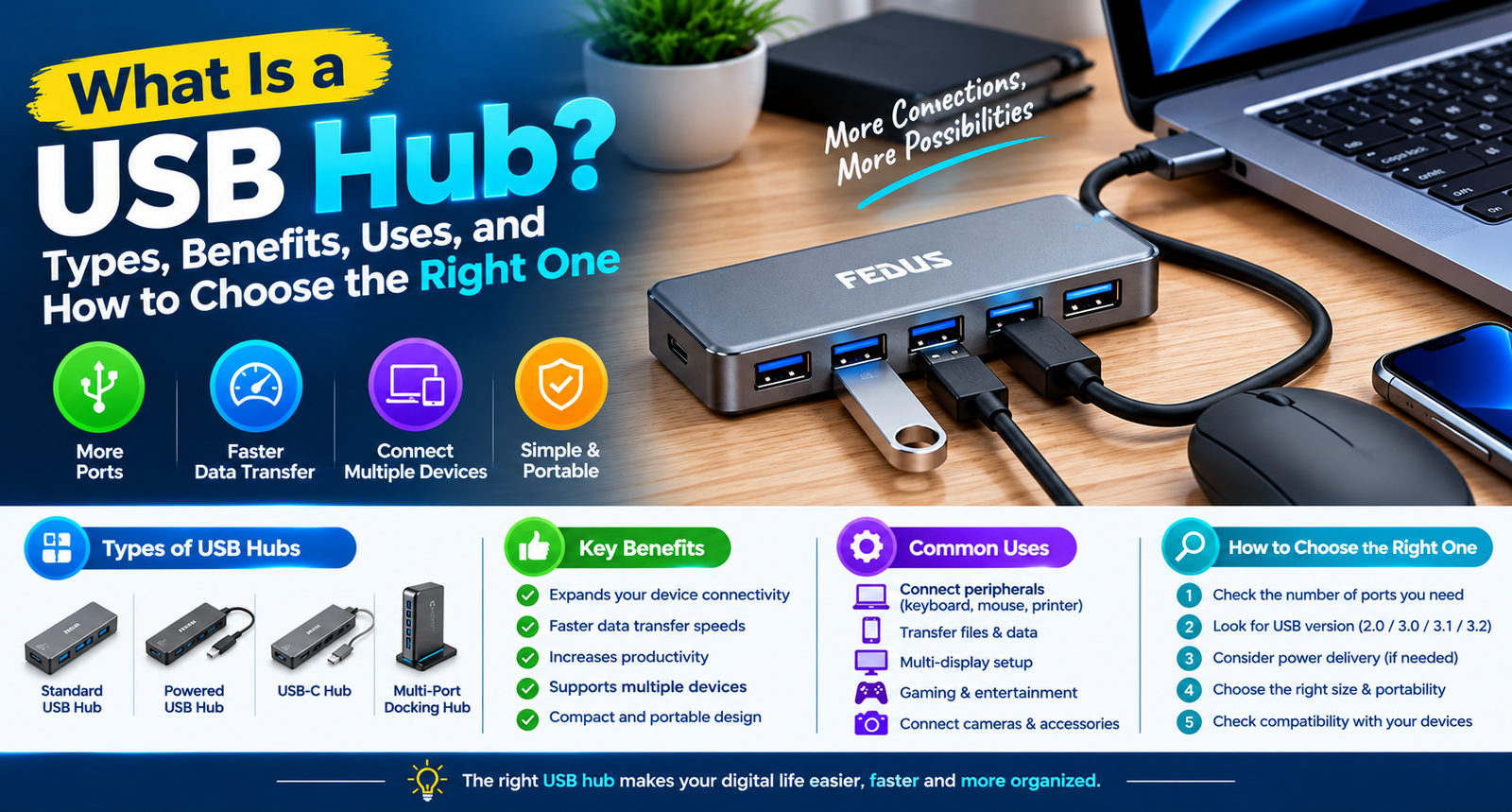
USB hubs are available in several designs to meet different connectivity requirements. Understanding these types can help you select a suitable option.
1. Standard USB Hub
A standard USB hub typically expands one USB connection into several USB-A ports. It is useful for connecting everyday accessories such as keyboards, mice, printers, and flash drives.
This type is a practical choice for desktop computers and laptops that need additional USB ports without requiring video output or network connectivity.
2. USB-C Hub
A USB C Hub connects through a USB-C port and may provide multiple types of connectivity through one compact device. Depending on the model, it can include USB-A ports, additional USB-C ports, HDMI, Ethernet, and memory card slots.
USB-C describes the connector shape, not necessarily the supported capabilities. Some USB-C ports support only data and charging, while others also support video output and higher data transfer speeds.
Before purchasing a hub, check the specifications of your computer’s USB-C port and the hub itself.
3. Multiport USB Hub
A Multiport USB Hub combines several connection options in one device. Instead of carrying separate adapters for different accessories, users can connect multiple peripherals through a single hub.
Depending on the model, its ports may include USB-A, USB-C, HDMI, Ethernet, SD cards, and microSD cards. This design is particularly useful for people who work with laptops that have limited built-in connectivity.
4. USB 3.0 Hub
A USB 3.0 Hub supports the USB 3.0 standard, also known as USB 3.2 Gen 1 in current naming conventions, with a theoretical maximum data rate of 5Gbps.
It can be useful for compatible external storage drives, flash drives, and other peripherals that benefit from faster data transfer than USB 2.0.
Actual transfer speeds depend on the connected computer, hub, cable, peripheral, and the type of files being transferred.
5. USB Hub with HDMI
A USB Hub with HDMI provides an HDMI output for connecting a compatible computer to an external monitor, television, or projector.
This type of hub can help create a more productive workspace by allowing you to use a larger display for documents, spreadsheets, presentations, video editing, and multitasking.
However, HDMI output is not supported by every USB-C port or hub. Check whether your laptop supports video output over USB-C or requires a compatible display technology. Also verify the maximum supported resolution and refresh rate.
6. USB Hub with Ethernet
A USB Hub with Ethernet combines USB expansion with a wired network connection. It can be useful for laptops that lack a built-in Ethernet port.
A wired connection may provide more consistent network performance than Wi-Fi in suitable network environments, making this option helpful for video conferencing, office work, file transfers, and other network-dependent tasks.
Check whether the hub supports Gigabit Ethernet or another network speed that matches your requirements. Actual performance also depends on your router, internet service, network cable, and computer.
7. Powered USB Hub
A powered USB hub uses an external power adapter to supply electricity to connected peripherals. This can be beneficial when several devices are connected simultaneously or when the peripherals require more power than a bus-powered hub can provide.
Always check the hub’s power rating and the power requirements of the connected devices. An external power adapter does not guarantee compatibility with every high-power accessory.
What Is a USB Hub Adapter?
A USB Hub Adapter is a compact accessory that expands a computer’s connectivity through a single connection. The term is often used for small hubs and USB-C adapters that combine multiple ports in one device.
For instance, a USB-C adapter might provide USB-A ports for a mouse and keyboard, an HDMI port for a monitor, and a USB-C port for supported charging.
These adapters are particularly helpful for thin laptops that offer fewer physical ports. Before buying one, confirm the connector type, supported features, operating system compatibility, and power requirements.
Benefits of Using a USB Hub
More Connectivity
The main advantage is access to additional ports. You can connect several compatible accessories without repeatedly unplugging and reconnecting them.
Better Workspace Organisation
A hub can help organise connections for a keyboard, mouse, monitor, external storage, and network cable. A suitable hub can reduce the number of separate adapters needed on your desk.
Convenient for Travel
Compact hubs are easy to carry in a laptop bag. They can be useful when working from a shared office, classroom, meeting room, or hotel.
Supports Productivity
Connecting multiple peripherals can make everyday tasks more convenient. For example, an office worker can use a keyboard, mouse, external display, and storage device, subject to the hub’s capabilities.
One Connection for Multiple Functions
Some advanced hubs combine data transfer, video output, wired networking, and charging. This makes them useful for people who want to connect several types of accessories through one compatible host port.
How to Choose the Right USB Hub
Selecting a hub depends on your devices, daily activities, and connectivity requirements. Consider the following factors before purchasing.
1. Check the Host Port
First, identify whether your computer has USB-A, USB-C, or Thunderbolt ports. The hub’s connector must match your computer or work with a suitable adapter.
For USB-C hubs, also check whether the host port supports data transfer, video output, and charging.
2. Count the Ports You Need
Make a list of the accessories you plan to connect. If you need only a keyboard, mouse, and flash drive, a basic hub may be sufficient. If you also need a monitor, Ethernet, and memory card access, consider a multiport model.
3. Consider Data Transfer Speed
USB standards support different maximum data rates. USB 2.0 supports up to 480Mbps, while USB 3.0 supports up to 5Gbps under the relevant standard.
For external SSDs and frequent file transfers, check the specifications of the complete connection, including the computer port, hub, and cable.
4. Verify HDMI Compatibility
If you want to connect an external display, check the maximum resolution and refresh rate supported by both the hub and your computer. A USB-C connector alone does not guarantee video output.
5. Check Power Delivery
Some hubs support USB-C Power Delivery passthrough, which allows a compatible charger to supply power to a connected laptop through the hub.
If charging is important, check the hub’s maximum supported input and output power, the charger’s capacity, and the laptop’s charging requirements. Power may also be shared with the hub’s connected peripherals.
6. Choose Ethernet Speed
If you need a wired network connection, verify whether the hub offers 10/100Mbps, Gigabit Ethernet, or another supported speed. Choose a model that matches your network equipment and work requirements.
7. Consider Build Quality and Portability
Look for a well-built hub with a suitable cable length, secure connectors, and a design that fits your workspace. A compact model is useful for travel, while a powered desktop hub may be better for a permanent workstation.
8. Verify Compatibility
Review the manufacturer’s compatibility information for your laptop, operating system, and peripherals. This is especially important for video output, high-power accessories, and specialised devices.
Who Should Use a USB Hub?
A USB hub can benefit many types of users:
Students: Connect a mouse, keyboard, flash drive, and other study accessories.
Office professionals: Organise peripherals for documents, meetings, and everyday productivity.
Remote workers: Connect supported monitors, webcams, storage devices, and network accessories.
Content creators: Access compatible storage drives, card readers, and other production equipment.
Travellers: Expand laptop connectivity when working away from a permanent desk.
MacBook users: Add ports to compatible MacBook models that have limited built-in connectivity.
Choosing a USB Hub for a MacBook
A USB Hub for MacBook can help connect accessories such as USB-A devices, external displays, storage drives, and Ethernet adapters, depending on the model.
Before choosing one, confirm your MacBook’s exact model and port capabilities. Not every MacBook supports every display configuration through a single hub, and supported external display counts, resolutions, and refresh rates can vary.
If you plan to connect a monitor and charge your MacBook at the same time, check that the hub supports the required video output and charging specifications.
Understanding USB Hub with Power Delivery
A USB Hub with Power Delivery can support laptop charging through a compatible USB-C Power Delivery connection while providing additional ports.
This can be useful when your laptop has only a few ports and you want to connect accessories while charging through the same host connection.
However, there are a few important considerations:
The laptop’s USB-C port must support the relevant charging functionality.
The hub must support a suitable Power Delivery input and output rating.
The charger and cable must provide adequate power.
The power available to the laptop may be lower than the charger’s advertised output because the hub uses some power and may have its own limits.
Always compare the hub’s power specifications with the laptop manufacturer’s charging recommendations.
Common USB Hub Mistakes to Avoid
Choosing a hub based only on its number of ports can lead to compatibility problems. Avoid these common mistakes:
Assuming every USB-C port supports video output.
Expecting every hub to deliver the same data transfer speed.
Connecting power-hungry devices to a hub without checking its power capacity.
Ignoring the supported HDMI resolution and refresh rate.
Assuming a hub will charge every laptop or smartphone.
Overlooking the network speed of a built-in Ethernet port.
Buying a hub without confirming compatibility with your operating system and devices.
Checking these specifications before purchasing can help you choose a suitable hub for your setup.
Conclusion
A USB hub is a practical accessory for expanding the connectivity of laptops, desktop computers, and other compatible devices. From standard USB hubs to advanced USB-C multiport models, different options are available for data transfer, external displays, wired networking, and charging.
To choose the right model, consider the ports you need, USB data speeds, host-device compatibility, power requirements, HDMI capabilities, and Ethernet speed. If you use a laptop with limited connectivity, a suitable hub can help create a more organised and productive workspace.
The best USB hub is not necessarily the one with the most ports. It is the one that supports your devices and provides the features you actually need.
Frequently Asked Questions (FAQs)
1. What is a USB hub used for?
A USB hub expands one USB port into multiple ports, allowing you to connect compatible devices such as keyboards, mice, flash drives, printers, and other peripherals.
2. Does a USB hub reduce speed?
It can. Devices connected to a hub may share the available bandwidth of the host connection. Actual performance depends on the USB standard, hub design, connected devices, and workload.
3. Can I connect multiple devices to one USB hub?
Yes. A hub allows multiple compatible devices to share one host connection. The number of devices you can use depends on the available ports, power capacity, bandwidth, and device compatibility.
4. What is the difference between USB 2.0 and USB 3.0 hubs?
USB 2.0 supports a theoretical maximum data rate of 480Mbps, while USB 3.0 supports up to 5Gbps. Actual transfer speeds are generally lower and depend on the connected equipment.
5. Can a USB hub charge a laptop?
Some USB-C hubs support Power Delivery passthrough, allowing compatible laptops to charge through the hub. Check the laptop, hub, charger, and cable specifications before use.
6. Does every USB-C hub support HDMI?
No. HDMI output requires the hub and host device to support a compatible video-output technology. Check the specifications before purchasing.
7. Can I use a USB hub with a MacBook?
Yes, provided the hub is compatible with your MacBook’s ports and supported features. Check the model’s requirements for displays, charging, and data transfer.
8. What is a powered USB hub?
A powered USB hub uses an external power adapter to supply electricity to connected peripherals. It can be helpful when multiple devices require more power than the computer’s USB port can provide.
9. Is a USB hub suitable for external hard drives?
Yes, many external drives can work through a compatible hub. However, check the drive’s power requirements and the hub’s available power. Some drives may work more reliably with a powered hub or direct connection.
10. What is the difference between a USB hub and a docking station?
A USB hub typically expands port availability, while a docking station often provides more extensive connectivity and workstation features. The exact differences depend on the products.
11. Can a USB hub connect a laptop to a monitor?
Yes, if the hub supports video output and the laptop supports the required display connection. Check the supported resolution, refresh rate, and number of external displays.
12. What is a USB hub with Ethernet used for?
It provides a wired network connection alongside other ports. It can be useful for laptops without built-in Ethernet, especially in offices or workspaces where wired connectivity is preferred.
13. Does a USB hub need a separate power supply?
Not always. Bus-powered hubs draw power from the computer, while powered hubs use an external adapter. The right option depends on the number and power requirements of connected devices.
14. How many ports should I choose for a USB hub?
Choose enough ports for your current accessories and allow some room for future needs. Consider whether you need USB-A, USB-C, HDMI, Ethernet, or memory card slots.
15. How do I choose the best USB hub for my laptop?
Check your laptop’s available ports, the number and type of connections required, data transfer speed, display support, charging needs, and compatibility. Choose a hub that meets these requirements rather than focusing only on the number of ports.
Promote your articles nowCheck for details
Choose a promotion package
Choose a package below, scan the QR code and pay the displayed amount for 20 days.
After payment, email your article title and payment screenshot to info@yourneeds.asia. Once confirmation is received, one of our administrators will activate the promotion.
Choose where your promoted article receives extra visibility
Promotion changes presentation and placement for the selected period. It does not guarantee traffic, enquiries, search ranking or sales.
Priority visibility in the VIP Lounge, promoted shelves and highlighted article areas.
Top-style highlighting in article directories, homepage feeds and promoted article blocks.
Premium styling across supported article feeds, recommendations and directory placements.
Featured presentation in supported homepage, category, directory and related-article areas.
Build a stronger online presence for your business
Get Your Website for ₹15,000
Are you listed and don't have a website for your business? We can plan, design and launch a responsive website that makes your business easier to understand and contact.
Get My WebsiteSEO Starts from ₹10,000/Month
Improve how your business is presented across Google, local listings and AI-powered search results with ongoing SEO, content and authority-building work.
Improve My VisibilitySuggested Articles
View all articles
What Is a Mini Router UPS? Types, Benefits, and How to Choose the Right One
Power cuts can interrupt your internet connection when you are working from home, attending online meetings, studying, or managing connected devices. A mini UPS…
HDMI 2.0 vs HDMI 2.1: Which Cable Is Best for You?
Choosing the right HDMI connection can make a noticeable difference to your entertainment and gaming experience. Whether you are connecting a television, laptop, gaming…
How to Use a 2-in-1 USB-C Splitter for Fast Charging and Listening to Music at the Same Time?
Modern smartphones, tablets, and other USB-C devices often come with a single USB-C port for charging and audio accessories. This can become inconvenient when…

Gayatri Psyllium Industries: Premium Psyllium Husk & Psyllium Husk Powder Manufacturer in India
Looking for a reliable Psyllium Husk Manufacturer in India or an experienced Psyllium Husk Exporter for bulk and international requirements? Gayatri Psyllium Industries, based…
Latest Blog Posts
View all articles
Buying Land in Dholera Smart City: 7 Things Every Property Buyer Should Verify
Dholera, Gujarat, has attracted attention from homebuyers, entrepreneurs and property investors interested in the region's planned development. With different types of land available across…

Sunset Luxury Farm House – A Perfect Destination for Relaxation and Private Events
Sunset Luxury Farm House is an ideal choice for people looking for a relaxing getaway, a private family gathering, or a special event away…

Spunbond Bags and Insulated Cooler Bags: Sustainable Packaging Solutions for Modern Businesses
Spunbond Bags and Insulated Cooler Bags: Sustainable Packaging Solutions for Modern Businesses Introduction Packaging has become an important consideration for businesses across retail, food…

How Can You Find the Best Residential Plots in Goa for Your Dream Home?
Goa is an appealing destination for people who want to build a permanent home, create a holiday retreat, or purchase land for future use.…
Property Management Software in UAE: A Guide for Landlords and Property Managers
Managing rental properties in the UAE involves coordinating tenants, rental payments, lease agreements, maintenance activities, and financial records. For landlords with a few apartments,…

AI Calling Agent Dubai: How Businesses Can Improve Customer Communication and Lead Follow-Up
Businesses in Dubai are increasingly exploring ways to manage customer enquiries, improve response times, and organise their sales processes. When a company receives enquiries…