
Published: |Last updated:
Listen to this article
Show Quick ReadConcise summary from this article
Introduction External hard drives are widely used to store photos, videos, documents, backups and other important files. To connect an external hard drive to a laptop, desktop or other compatible device, you need a suitable USB cable. A USB 3.1 Type-C to Micro-B cable provides a convenient connection between modern USB Type-C ports and compatible external hard drives featuring a Micro-B USB 3.0 port. The FEDUS USB 3.1 Type-C to…
Ask AI About This Article
Answers are limited to information in this article.
Introduction
External hard drives are widely used to store photos, videos, documents, backups and other important files. To connect an external hard drive to a laptop, desktop or other compatible device, you need a suitable USB cable. A USB 3.1 Type-C to Micro-B cable provides a convenient connection between modern USB Type-C ports and compatible external hard drives featuring a Micro-B USB 3.0 port.
The FEDUS USB 3.1 Type-C to Micro-B Hard Drive Cable is designed for connecting supported portable hard drives to compatible devices. It is useful for everyday file transfers, data backups and accessing stored content. In this blog, we will explore its features, uses, benefits and important buying considerations.
What Is a USB 3.1 Type-C to Micro-B Hard Drive Cable?
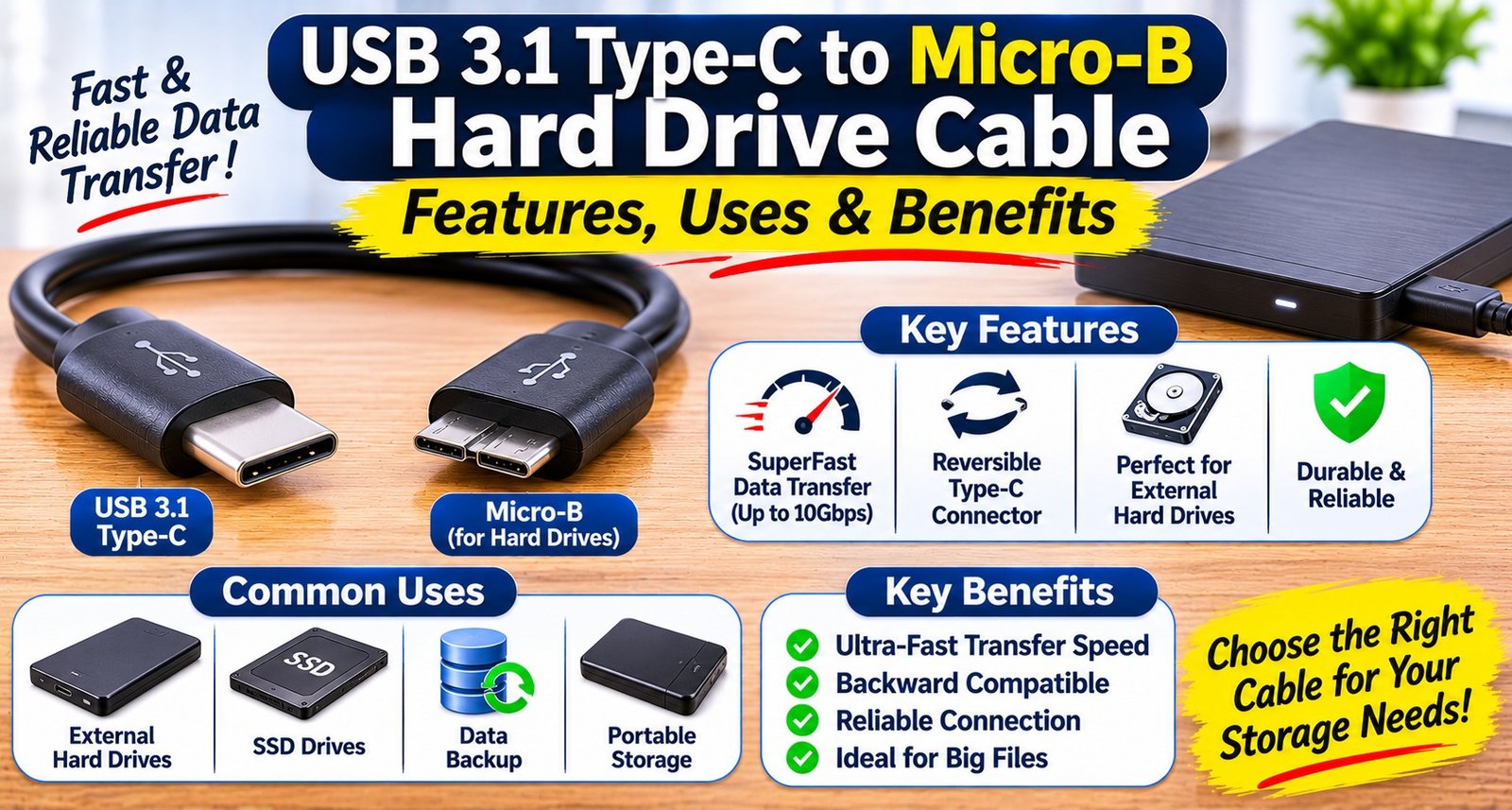
A USB 3.1 Type-C to Micro-B hard drive cable is a data cable with a USB Type-C connector on one end and a Micro-B USB 3.0 connector on the other. It allows users to connect compatible external hard drives to laptops, computers and other devices with a USB-C port.
The USB Type-C connector is commonly found on modern laptops, tablets and other electronic devices, while the Micro-B USB 3.0 connector is used by many portable external hard drives.
This cable is particularly helpful when your computer has a USB-C port but your external hard drive uses a Micro-B USB 3.0 connection.
Key Features of FEDUS USB 3.1 Type-C to Micro-B Cable
1. USB Type-C to Micro-B Connectivity
The cable features a USB Type-C connector on one end and a Micro-B USB 3.0 connector on the other. It provides a convenient connection between compatible USB-C devices and external hard drives.
2. High-Speed Data Transfer
USB 3.1 technology supports data transfer speeds of up to 5Gbps for USB 3.1 Gen 1 or up to 10Gbps for USB 3.1 Gen 2, depending on the cable specification. Actual transfer speeds depend on the cable, external hard drive, computer port and connected devices.
3. Convenient External Hard Drive Connection
The cable works as an External Hard Drive Connector for compatible portable storage devices. It helps users connect their hard drives without requiring an additional adapter when the device has a suitable USB-C port.
4. Easy Plug-and-Play Setup
Simply connect the USB-C end to a compatible computer and the Micro-B end to the external hard drive. Supported operating systems generally recognise compatible external storage devices automatically.
5. Compact and Practical Design
A dedicated hard drive cable is easy to carry with your laptop accessories. It is useful for office work, travelling, personal data management and everyday storage requirements.
Uses of USB-C to Micro-B Hard Drive Cable
A USB-C Hard Disk Cable can be used in different situations where compatible devices need to exchange data.
1. Connecting External Hard Drives
Connect supported portable external hard drives to laptops and desktop computers with USB Type-C ports.
2. Transferring Files
Move documents, images, videos, music and other files between your computer and external storage device.
3. Creating Data Backups
Use the cable to connect an external hard drive when backing up important personal or professional files.
4. Accessing Stored Data
Open and manage files stored on compatible external hard drives directly from your connected computer.
5. Office and Professional Work
It can be useful for professionals who regularly work with large files, project folders, presentations and digital backups.
Compatible Devices and External Hard Drives
The FEDUS cable is designed for compatible devices featuring a USB Type-C port and external hard drives with a Micro-B USB 3.0 port.
Some commonly associated external hard drive models and product families include:
WD Elements portable external hard drives
Seagate portable external hard drives
Toshiba portable external hard drives
Samsung M3 external hard drives
Other compatible Micro-B USB 3.0 storage devices
The WD Elements USB Cable connection is useful for supported WD Elements models that feature a Micro-B USB 3.0 port.
Similarly, the Samsung M3 Hard Drive Cable connection can be used with compatible Samsung M3 portable hard drives.
Compatibility should always be checked against the actual connector available on your hard drive. Not every model from these brands uses the same port.
Benefits of Using a USB-C to Micro-B Cable
1. Connects Modern and Older Devices
Many modern laptops feature USB Type-C ports, while several external hard drives still use Micro-B USB 3.0 connectors. This cable helps connect these different interfaces.
2. Supports Faster File Transfers
With compatible USB 3.1 hardware, the cable can support faster data transfer than older USB 2.0 connections. This is helpful when transferring large folders, videos and backups.
3. Reduces the Need for Additional Adapters
Instead of using a separate adapter with a traditional USB-A cable, you can connect a compatible external hard drive directly to a USB-C port.
4. Useful for Regular Backups
The cable makes it convenient to connect an external storage device for regular backups and file management.
5. Suitable for Home and Office
Whether you are a student, professional, photographer or regular computer user, an external hard drive cable can help manage your digital files.
USB-C to Micro-B Cable vs USB-A to Micro-B Cable
Both cable types connect compatible external hard drives with a Micro-B USB 3.0 port. The main difference is the connector used on the computer side.
Feature
USB-C to Micro-B
USB-A to Micro-B
Computer connector
USB Type-C
USB Type-A
Hard drive connector
Micro-B USB 3.0
Micro-B USB 3.0
Device compatibility
USB-C ports
USB-A ports
Common use
Modern laptops
Older and traditional computers
Data transfer
Depends on USB specification
Depends on USB specification
Choose the cable according to the available port on your computer and the connector on your external hard drive.
How to Choose the Right External Hard Drive Cable
Before purchasing a Portable HDD Connection Cable, consider these important points:
Check the connectors: Confirm that your computer has a USB-C port and your hard drive has a Micro-B USB 3.0 port.
Verify USB specification: Check whether the cable supports the data transfer speed required by your devices.
Check compatibility: Confirm your external hard drive model supports the Micro-B USB 3.0 connection.
Consider cable quality: Choose a well-built cable with reliable connectors for regular use.
Check cable length: Select a suitable length according to your desk setup, laptop position and storage arrangement.
A compatible Micro-B USB 3.0 Cable can help establish a reliable connection between your computer and external storage device.
Common Applications of External HDD Data Cables
An External HDD Data Cable is useful in many everyday situations, including:
Transferring personal photos and videos.
Creating computer backups.
Moving office documents and project files.
Accessing stored movies and media.
Managing large files on external storage.
Connecting portable hard drives to compatible laptops.
A suitable Hard Drive Data Transfer Cable makes these tasks easier by providing a direct connection between compatible devices.
USB-C to HDD Adapter Cable: Is It Necessary?
An additional adapter is not normally required when you have the correct USB-C to HDD Adapter Cable with a USB-C connector on one end and a Micro-B USB 3.0 connector on the other.
However, if your computer has only USB-A ports, you will need a compatible USB-A cable or another suitable connection solution.
Always check the port type before buying to avoid connectivity problems.
Conclusion
A USB 3.1 Type-C to Micro-B Hard Drive Cable is a practical accessory for connecting compatible portable external hard drives to modern laptops and computers. It helps users transfer files, manage stored data and create backups through a convenient wired connection.
The FEDUS USB-C to Micro-B Hard Drive Cable is suitable for compatible WD Elements, Seagate, Toshiba, Samsung M3 and other external hard drives featuring a Micro-B USB 3.0 port. Before purchasing, always verify the connector type and USB specifications to ensure compatibility and the expected performance.
Frequently Asked Questions (FAQs)
1. What is a USB 3.1 Type-C to Micro-B cable used for?
It is used to connect compatible external hard drives with Micro-B USB 3.0 ports to computers and laptops featuring USB Type-C ports.
2. Is this cable compatible with WD Elements external hard drives?
Yes, it can work with WD Elements models that feature a Micro-B USB 3.0 port and support the required USB connection.
3. Can I use this cable with Seagate external hard drives?
Yes, provided your Seagate external hard drive has a compatible Micro-B USB 3.0 port.
4. Does this cable support data transfer?
Yes. It supports data transfer between compatible devices. The actual speed depends on the cable specification and connected hardware.
5. Can I connect a Toshiba external hard drive using this cable?
Yes, if the Toshiba drive has a compatible Micro-B USB 3.0 connector.
6. Is this cable compatible with Samsung M3 external hard drives?
It can be used with compatible Samsung M3 models that feature a Micro-B USB 3.0 port.
7. Can I use this cable with a USB-C laptop?
Yes, if the laptop has a compatible USB-C port that supports the required data connection.
8. Is USB-C to Micro-B the same as USB-C to Micro-USB?
No. Micro-B USB 3.0 has a wider, distinctive connector, while standard Micro-USB has a different shape. Check the port carefully before purchasing.
9. Do I need to install drivers to use this cable?
Most modern operating systems automatically recognise supported external hard drives. However, specific device or operating system requirements may vary.
10. Can this cable charge my external hard drive?
The cable is primarily intended for data connectivity. Power delivery depends on the connected USB port and the requirements of the external hard drive.
11. Can I use this cable for large video files?
Yes. It can be used to transfer large video files when the connected hard drive, computer and cable support the required data transfer.
12. Does this cable work with USB-A ports?
No, not directly. It has a USB Type-C connector on the computer side. You need a USB-C port or a suitable compatible adapter.
13. What is the difference between USB 3.0 and USB 3.1?
USB 3.1 Gen 1 supports up to 5Gbps, while USB 3.1 Gen 2 supports up to 10Gbps. The actual speed depends on the specific cable and connected hardware.
14. Can I use this cable for regular data backup?
Yes. It can connect compatible external hard drives to your computer for routine data backup and file storage.
15. How do I choose the correct hard drive cable?
Check the connector type on both devices, supported USB specification, compatibility and required cable length before purchasing.
Promote your articles nowCheck for details
Choose a promotion package
Choose a package below, scan the QR code and pay the displayed amount for 20 days.
After payment, email your article title and payment screenshot to info@yourneeds.asia. Once confirmation is received, one of our administrators will activate the promotion.
Choose where your promoted article receives extra visibility
Promotion changes presentation and placement for the selected period. It does not guarantee traffic, enquiries, search ranking or sales.
Priority visibility in the VIP Lounge, promoted shelves and highlighted article areas.
Top-style highlighting in article directories, homepage feeds and promoted article blocks.
Premium styling across supported article feeds, recommendations and directory placements.
Featured presentation in supported homepage, category, directory and related-article areas.
Build a stronger online presence for your business
Get Your Website for ₹15,000
Are you listed and don't have a website for your business? We can plan, design and launch a responsive website that makes your business easier to understand and contact.
Get My WebsiteSEO Starts from ₹10,000/Month
Improve how your business is presented across Google, local listings and AI-powered search results with ongoing SEO, content and authority-building work.
Improve My VisibilitySuggested Articles
View all articles
USB Type-C Charging Cable: Features, Benefits, Uses & How to Choose the Right One
Introduction A reliable charging cable is an essential accessory for smartphones and other electronic devices. Whether you use your phone for work, entertainment, gaming…
8 Channel CCTV UPS: Features, Uses, Benefits & Buying Guide
Introduction A reliable power supply is essential for keeping security cameras and surveillance systems running continuously. Power cuts or voltage fluctuations can interrupt CCTV…
HDMI to VGA Cable Adapter: Uses, Benefits & How to Choose the Right One
Introduction Connecting a modern computer or laptop to an older monitor or projector can sometimes be challenging because different devices use different display ports.…
Networking Tools: Types, Uses, Benefits & How to Choose the Right Networking Tools
Introduction A reliable computer network is essential for homes, offices, schools, data centers, and businesses. Whether you are setting up an internet connection, installing…
Latest Blog Posts
View all articles
How Much Should You Budget for a Farmhouse in Naugaon?
Buying a farmhouse requires more financial planning than simply checking the property's advertised price. Buyers need to consider registration charges, legal verification, development expenses,…

How Numerology Works: Mulank, Bhagyank and Name Number Explained for Beginners
Have you ever wondered why some people say “my lucky number is 7” or change the spelling of their name before starting a business?…

Organic Marketing vs Paid Marketing: Which Strategy Is Better for Business Growth?
In today's competitive digital world, businesses need effective marketing strategies to attract customers, build brand awareness, and increase revenue. Two of the most popular…

What Should Buyers Evaluate Before Booking a Villa at Grand Sereno Nagoa?
Buying a luxury villa in Goa is a significant decision, particularly for people looking for a second home or a spacious residence for their…
Kana777 – Satta Matka Jodi and Panel Charts
Kana777 – Satta Matka Jodi and Panel Charts is an online information resource focused on Satta Matka Jodi charts, panel chart information, market-related results,…

Residential Plot vs Ready House in Dholera: Which Is Better
Residential Plot vs Ready-to-Move House in Dholera: Which Option Suits Your Needs? When considering a residential property purchase in Dholera, buyers may face an…