
Published: |Last updated:
Listen to this article
Show Quick ReadConcise summary from this article
Have you ever enlarged a logo or picture only to see blurry edges and rough lines? This is a common problem when working with regular image files. The good news is that you can solve it by converting your images into vector graphics. When you convert images into vector graphics, you turn pixel-based artwork into shapes and paths that can be resized without losing clarity. This makes vector artwork useful…
Ask AI About This Article
Answers are limited to information in this article.
Have you ever enlarged a logo or picture only to see blurry edges and rough lines? This is a common problem when working with regular image files. The good news is that you can solve it by converting your images into vector graphics.
When you convert images into vector graphics, you turn pixel-based artwork into shapes and paths that can be resized without losing clarity. This makes vector artwork useful for logos, business cards, signs, product labels, clothing designs, and many other projects.
Whether you are a business owner, designer, or small business operator, learning about image vectorization can help you create cleaner and more professional artwork. In this guide, we will explain how vector conversion works, which methods you can use, and how to get the best results with Digitizing Buddy.
What Does It Mean to Convert Images into Vector Graphics?
Converting images into vector graphics means changing a raster image into artwork made from mathematical paths, curves, and shapes.
Raster images use tiny colored squares called pixels. Common raster formats include JPG, JPEG, PNG, and BMP. These files work well for photographs, but their quality can decrease when you enlarge them too much.
Vector graphics use paths and shapes instead of a fixed grid of pixels. This allows you to resize the artwork without making its edges look blurry.
Raster Images vs. Vector Graphics
Understanding the difference between these two image types can help you choose the right format for your project.
Raster images:
- Made from individual pixels.
- Can become blurry when enlarged.
- Work well for photographs and detailed pictures.
- Commonly saved as JPG, PNG, or BMP files.
Vector graphics:
- Made from editable paths, curves, and shapes.
- Can be scaled without losing edge clarity.
- Work well for logos, icons, illustrations, and print designs.
- Commonly saved as SVG, EPS, AI, or vector PDF files.
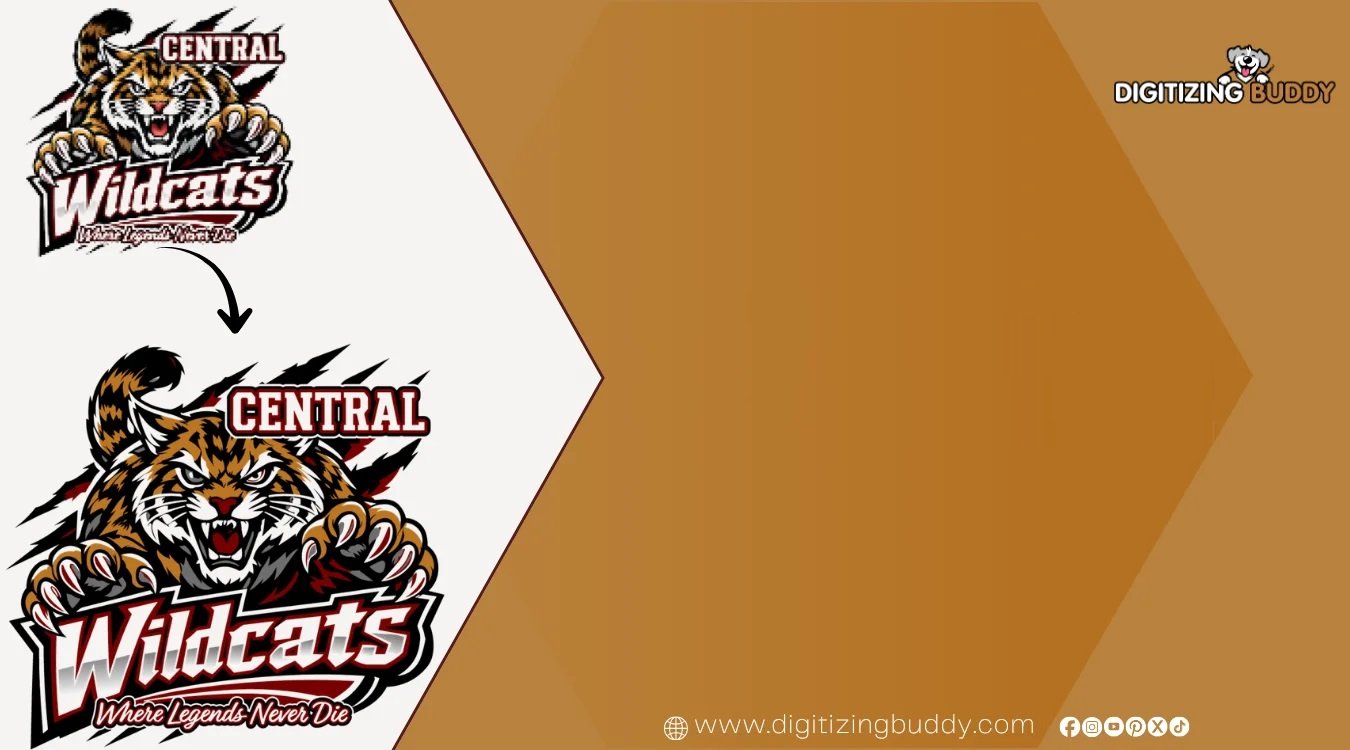
For example, imagine you have a small PNG logo that looks clear on your website. When you print it on a large banner, its edges may become rough. Converting it into a properly created vector file allows you to use the logo at different sizes while keeping its outlines sharp.
Why Should You Convert Images into Vector Graphics?
Vector conversion offers several benefits for businesses, designers, and people who work with custom artwork.
1. Resize Images Without Losing Clarity
One of the biggest advantages of vector artwork is scalability. You can use the same design on a small product label or a large outdoor sign without losing the sharpness of its edges.
This is especially helpful for businesses that use the same logo across different marketing materials.
2. Create Professional-Looking Logos
A logo represents your business, so it should look clean wherever it appears. Converting a suitable raster logo into vector format can help improve its outlines and make it easier to prepare for professional printing.
However, a poor-quality source image may need manual tracing and cleanup to achieve a polished result.
3. Make Artwork Easier to Edit
Vector files allow designers to edit individual shapes, paths, and colors. Depending on the software and file structure, you may be able to change the size of a letter, adjust a curve, or remove an unwanted element without rebuilding the entire design.
This flexibility is valuable when updating logos, creating product artwork, or preparing different versions of the same design.
4. Prepare Artwork for Different Applications
Vector graphics are commonly used for:
- Business logos and brand identities.
- T-shirt graphics and apparel printing.
- Business cards, flyers, and brochures.
- Vehicle graphics and large signs.
- Stickers, labels, and packaging.
- Laser cutting and other production processes that support suitable vector files.
Vector artwork can also serve as a starting point for embroidery digitizing. However, an embroidery machine usually requires a stitch file created from the artwork rather than a standard SVG or EPS file.
How to Convert Images into Vector Graphics
There are several ways to convert a raster image into vector artwork. The right method depends on the image quality, design complexity, and final purpose.
Method 1: Use Automatic Image Tracing
Automatic tracing software analyzes an image and attempts to recreate its visible areas as vector shapes.
This method works best with simple graphics, such as basic icons, flat illustrations, and logos with clear outlines.
Follow these steps:
- Choose a clear JPG or PNG image.
- Open it in vector graphics software that supports image tracing.
- Find the automatic tracing or vectorization feature.
- Adjust settings such as detail, color count, and edge detection.
- Preview the traced artwork.
- Apply the conversion and inspect the resulting paths.
- Save or export the design in a suitable vector format.
Automatic tracing is quick, but it does not always produce clean results. You may need to remove extra shapes, correct uneven edges, and adjust colors before using the file professionally.
Method 2: Trace the Image Manually
Manual tracing involves recreating an image with vector paths and shapes. It takes more time than automatic tracing, but it often provides better control over the final result.
This approach is useful for logos with small details, uneven outlines, or text that must remain accurate.
To trace an image manually:
- Import the original image into your design workspace.
- Lock the image on a separate layer so it does not move accidentally.
- Use drawing tools to trace the main outlines.
- Create separate shapes for different colors or design elements.
- Refine curves and remove unnecessary points.
- Compare the vector artwork with the original image.
- Export the finished design in the required format.
For business logos and artwork used in professional printing, manual cleanup can make a significant difference.
Method 3: Use a Professional Vector Art Service
Sometimes, automatic tracing is not enough. If your image contains fine details, small text, complex curves, or multiple colors, professional vector conversion may be the better choice.
A professional designer can recreate the artwork, refine its outlines, correct its shapes, and prepare the file for its intended use.
At Digitizing Buddy, you can explore vector artwork solutions for designs that need a clean, usable result. This can be helpful when you have a low-resolution logo, an older image file, or artwork that needs to be prepared for production.
Before requesting a conversion, share the best available version of your image and explain where you plan to use the final design. This helps determine the appropriate file format and level of detail.
Which Image Formats Can Be Converted into Vector Graphics?
Many common image formats can serve as source files for vector conversion. However, the quality of the original image affects how much cleanup may be needed.
JPG to Vector
JPG images are widely used for photographs and web graphics. They can be converted into vector artwork, but compression may create unwanted marks around edges.
For simple logos, automatic tracing may work well. Photographs usually require more complex techniques if you want to create a vector illustration rather than a simple outline.
PNG to Vector
PNG files are useful when an image needs a transparent background. A clean PNG logo can be a good starting point for vectorization.
Transparent areas do not automatically become vector shapes. The tracing process must identify the visible artwork and recreate its boundaries correctly.
BMP to Vector
BMP files store image information as pixels and may contain large amounts of image data. They can be used for vector conversion, but a large file does not necessarily mean the image has enough detail for accurate tracing.
Hand-Drawn Images to Vector
A scanned drawing or a clear photograph of a sketch can also be converted into vector artwork. This process may involve removing the paper background, cleaning the lines, and recreating the drawing with editable paths.
If the original sketch has faint lines or shadows, cleaning the image before tracing can improve the result.
Best Vector File Formats for Different Projects
Choosing the right output format is an important part of image conversion. Different formats serve different purposes, so always check what your printer, designer, or production equipment requires.
| SVG | Websites, digital graphics, and supported cutting workflows |
| EPS | Print production and sharing artwork with compatible design applications |
| AI | Editable artwork in compatible vector design software |
| Sharing and printing artwork when the PDF preserves vector content |
Keep in mind that changing a file extension does not convert an image into a vector. For example, renaming a PNG file to SVG will not turn its pixels into editable vector paths.
Always export the artwork through software or a service that performs an actual vector conversion.
Tips for Getting High-Quality Vector Artwork
If you want a clean result, preparing the original image properly can save time and reduce editing work.
Start With the Best Available Image
Use the highest-quality version of your artwork whenever possible. Clear edges make it easier for tracing software or a designer to identify the correct shapes.
Avoid screenshots when you can obtain the original logo or image file.
Remove Unnecessary Backgrounds
A plain background is easier to handle than a photograph with many objects, shadows, and textures.
If you only need the logo, remove the background before tracing when appropriate. Check that no unwanted background shapes remain in the final vector file.
Keep Colors Organized
Images with too many similar shades may produce hundreds of small vector shapes. This can make the file harder to edit and may reduce its usefulness for printing.
For simple logos, reducing the number of colors can create cleaner artwork. Make sure the simplified design still matches the original branding.
Check Curves and Edges
Zoom in and inspect the artwork after conversion. Look for rough curves, stray points, gaps, overlapping shapes, and unwanted marks.
Correcting these issues helps the design look professional at both small and large sizes.
Test the Final File
Open the exported file in compatible software before sending it to a printer or production team.
Check that the shapes, colors, text, and transparency appear as expected. If the design contains text, ask whether the recipient needs editable text or outlined paths.
Choose the Format Based on Your Goal
Do not choose a file format simply because it is popular. Think about how the artwork will be used.
For example, a website may need SVG, while a print provider may request EPS or a vector PDF. A cutting machine may require a particular supported format, and an embroidery machine will generally need a compatible stitch file.
Common Mistakes to Avoid During Vector Conversion
Even a simple image can produce poor results if the conversion process is not handled carefully.
Here are some common mistakes to watch for:
- Using a blurry source image: Low-quality images can lead to inaccurate outlines and missing details.
- Relying only on automatic tracing: Automated tools may create unnecessary points, rough edges, or extra shapes.
- Ignoring small details: Thin lines and small text may disappear or become distorted during conversion.
- Saving in the wrong format: A file may not work correctly with the intended software or production equipment.
- Skipping the final review: Always inspect the converted design before printing or sharing it.
- Confusing vector artwork with embroidery files: Vector files describe shapes, while embroidery files contain machine instructions such as stitches and color changes.
Avoiding these mistakes can help you get more value from your original artwork and reduce the need for repeated revisions.
When Should You Choose Professional Vector Conversion?
Not every image requires professional help. A basic icon or simple black-and-white logo may be easy to trace with suitable software.
However, professional conversion can be useful when:
- Your logo is blurry or has uneven edges.
- The artwork contains several colors and complex shapes.
- Small details must remain accurate.
- You need consistent branding across different materials.
- The design will be printed at several sizes.
- You need an editable vector file for ongoing design work.
- You want artwork prepared for a specific production process.
The key is to focus on the final result rather than the conversion method alone. A usable vector file should be clean, accurate, editable where needed, and suitable for its intended purpose.
Digitizing Buddy can help you explore options for preparing artwork when quality and practical usability matter.
Conclusion
Learning to convert images into vector graphics can make your artwork more flexible, easier to edit, and suitable for a wider range of applications. Vector files are especially useful for logos, branding, illustrations, signs, and print materials because they can be resized without losing edge clarity.
You can use automatic tracing for simple images, manual tracing for greater control, or professional vector art services for designs that need extra attention. The best approach depends on the source image, the level of detail, and the purpose of the final file.
For the best results, start with a clear image, check every outline, choose the correct output format, and review the finished artwork before using it. When you need help preparing clean and professional designs, Digitizing Buddy is worth exploring.
Frequently Asked Questions (FAQs)
1. How do I convert images into vector graphics?
You can use image-tracing software to convert a JPG, PNG, or other raster image into vector paths. For more detailed artwork, manual tracing or professional vector conversion may produce a cleaner result.
2. Can I convert a JPG image into a vector file?
Yes. JPG images can be converted into formats such as SVG, EPS, or vector PDF. The quality of the result depends on the original image, its complexity, and the tracing method used.
3. Which image format is best for vector conversion?
PNG and JPG are common source formats. A high-quality image with clear edges and a simple background is often easier to convert. For the final vector file, SVG is useful for many digital applications, while EPS and vector PDF are common choices for certain print workflows.
4. Will converting an image into a vector improve its quality?
Vector conversion allows artwork to scale without the pixelation associated with enlarging raster images. However, it does not automatically restore missing details or make a poor source image perfect. The paths may need manual correction to achieve a high-quality result.
5. Can vector graphics be used for embroidery?
Yes, vector artwork can be used as a starting point for embroidery digitizing. However, it must generally be converted into a machine-compatible stitch file with suitable stitch types, density, underlay, and other settings before it can be embroidered.
Promote your articles nowCheck for details
Choose a promotion package
Choose a package below, scan the QR code and pay the displayed amount for 20 days.
After payment, email your article title and payment screenshot to info@yourneeds.asia. Once confirmation is received, one of our administrators will activate the promotion.

Choose where your promoted article receives extra visibility
Promotion changes presentation and placement for the selected period. It does not guarantee traffic, enquiries, search ranking or sales.
Priority visibility in the VIP Lounge, promoted shelves and highlighted article areas.
Top-style highlighting in article directories, homepage feeds and promoted article blocks.
Premium styling across supported article feeds, recommendations and directory placements.
Featured presentation in supported homepage, category, directory and related-article areas.
Build a stronger online presence for your business
Get Your Website for ₹15,000
Are you listed and don't have a website for your business? We can plan, design and launch a responsive website that makes your business easier to understand and contact.
Get My WebsiteSEO Starts from ₹10,000/Month
Improve how your business is presented across Google, local listings and AI-powered search results with ongoing SEO, content and authority-building work.
Improve My VisibilitySuggested Articles
View all articles
Custom Digitizing Services: Get Clean, Quality Embroidery
Have you ever seen a beautiful logo on a shirt or cap and wondered how it was stitched so neatly? Behind every clean embroidery…
Professional Embroidery Artwork for Etsy: A Seller’s Guide
A beautiful embroidery design can turn an ordinary item into something special. Whether it is a personalized baby blanket, a custom tote bag, or…

Emerging Business Opportunities That Are Shaping the Future Market
Due to continuous growth and development in the global economy, entrepreneurs are finding many ways to innovate, utilize advanced technology, and leverage strategic acquisitions…

How to Build a Successful Influencer Sponsorship Strategy
Influencer Sponsorship has become an effective strategy for brands that want to connect with targeted audiences through authentic and engaging content. Instead of depending…
Latest Blog Posts
View all articles
Waklert 150 mg: Common Questions About This Medication
What is the nature of Waklert and what are the precautions to be taken? Waklert 150 mg is the brand name under which armodafinil…
Mental Health and Oral Health: Why They’re More Connected Than You Think
When you are going through a hard time, taking care of your teeth may seem to be the least of your concerns. Well, in…
What Is a Smart Meter? Working, Benefits, Installation, and Problems Explained
Let's be honest: most of us only look at the electricity bill when it hurts. You open it, see a number that makes no…

Best ServiceNow ITAM Training in Noida at TechMyIndia
Every IT Asset Has a Business Value A company may utilize hundreds if not thousands of laptops, applications, servers, and other assets. Every object…

Best ServiceNow ITOM Training Hyderabad: Insights on IT Operations Management
The Value of ITOM for Enterprise Environments Businesses frequently utilize various technology resources to maintain their operations. Any malfunction in a server, database, network,…
Dholera Estates 1 Kasindra Plot Site Visit Guide: What to Inspect and Ask Before You Buy
Documents tell you what a plot is supposed to be. A site visit tells you what it actually is. Many buyers make decisions from…