
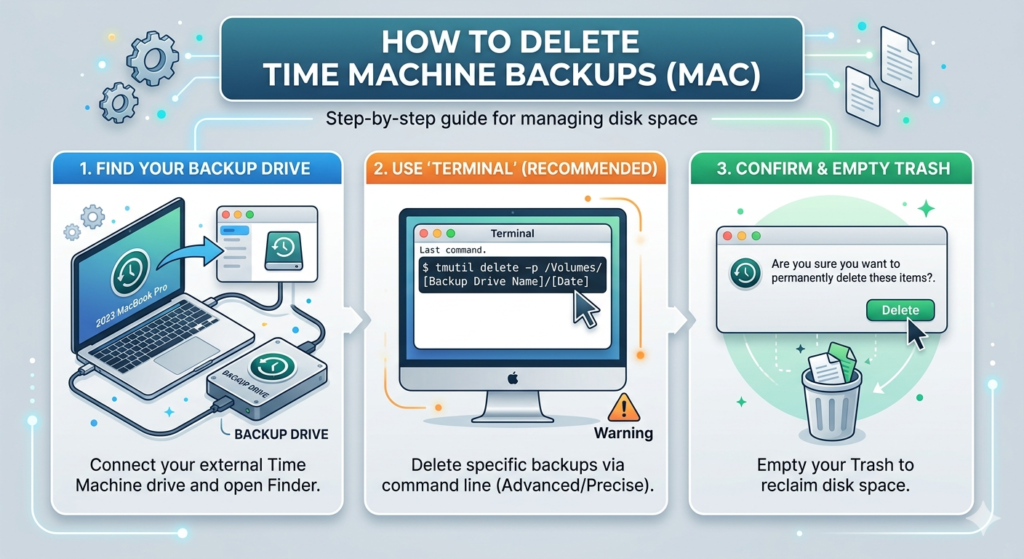
Time Machine is a built-in macOS backup feature that automatically saves copies of your files, apps, and system data. While it’s incredibly useful, backups can quickly take up significant storage space. If your backup disk is full or you simply want to remove old backups, deleting Time Machine backups is a practical solution.
In this guide, we’ll walk you through simple ways to delete Time Machine backups safely.
Why Delete Time Machine Backups?
You might want to delete backups for several reasons:
- Free up storage space on your backup drive
- Remove outdated or unnecessary backups
- Fix issues with corrupted backups
- Start fresh with a new backup cycle
Method 1: Delete Backups Using Time Machine Interface
This is the easiest and safest way for most users.
Steps:
- Connect your Time Machine backup drive
- Click the Time Machine icon in the menu bar
- Select Enter Time Machine
- Navigate to the date of the backup you want to delete
- Click the gear icon (⚙️) or right-click the folder/file
- Choose Delete Backup or Delete All Backups of [item]
- Enter your Mac password to confirm
Method 2: Delete Specific Backups via Finder
You can also remove backups directly from the backup disk.
Steps:
- Open Finder
- Select your Time Machine backup drive
- Open the Backups.backupdb folder
- Locate the backup folder (named by date)
- Right-click and select Move to Trash
- Empty the Trash
⚠️ Note: You may need administrator permissions to delete these files.
Method 3: Delete Backups Using Terminal (Advanced)
For advanced users, Terminal offers more control.
Command:
tmutil delete /Volumes/BackupDrive/Backups.backupdb/YourMacName/YYYY-MM-DD-HHMMSS
Replace the path with your actual backup location.
What If You Accidentally Delete Important Backups?
Deleting the wrong Time Machine backup can lead to permanent data loss – especially if you don’t have another copy. In such situations, using a reliable data recovery tool becomes essential.
Free Data Recovery Software for Mac is a trusted solution that helps recover deleted photos, videos, documents, emails, and more from Time Machine drives, internal disks, and external storage devices. It features an intuitive interface, making it easy for users to recover lost data without technical expertise.
The free version allows you to recover up to 1GB of data and supports modern Mac systems, including those powered by Apple Silicon (M1/M2/T2 chips). It also offers useful features like file preview, selective recovery, and deep scanning to improve recovery results.
Tips Before Deleting Backups
- Make sure you don’t need the data before deleting
- Avoid deleting the most recent backup unless necessary
- Keep an additional backup for critical files
Final Thoughts
Deleting Time Machine backups is a simple way to manage storage and keep your backup drive organized. Whether you prefer using the Time Machine interface, Finder, or Terminal, choose the method that best suits your comfort level. Just be cautious and double-check before removing any important backups.